Datasource

Select from which source you want the web part to grab data from:
- Save to this web part - Use and edit data stored within the web part.
- Get data from a Sharepoint List - Get data from a Sharepoint List.
- Choose dynamic content - Dynamic data source that allows to grab specific types of content.
Save to this web part
[image]
This is the default data source and allows the user to test the web part by configuring it with data stored within itself.
Get data from a Sharepoint List
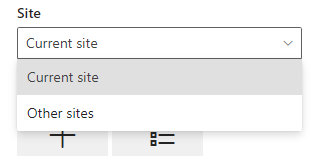
- Current site - Choose or create a list on the same collection.
- Other sites - Choose or create a list on any site collection.
Other sites
Search for a site or pick from frequent or recent sites
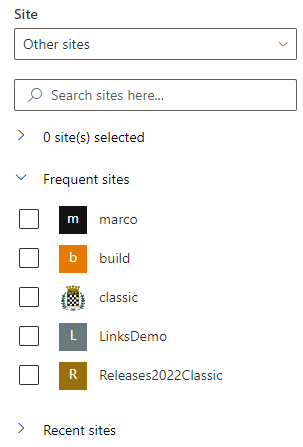
Choose a list action
-
Create new - Create a list on the selected site by entering a list name and click "Create list" button. After the list has been created, the web part will automatically be connected to that list.

-
Existing list - Search for an existing list.

Choose a view or filter with a caml query
Click on the cog weel
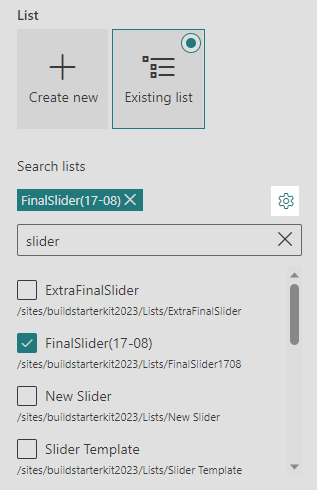
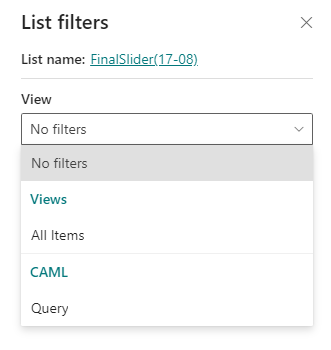
To filter the view, you have two options:
-
Views - Choose a view from available views.
-
Caml Query - Apply a caml query.
Caml Query
You query must have the following structure
<View><Query><Where></Where></Query></View>
You can create caml queries using U2U Caml Query builder tool. Download it, here
Target Folder
You can also choose a target folder so only the items within that folder are displayed.
Choose dynamic content

Within this panel, the user can choose different types of content, being able to choose one or multiple types at once, the options being: - Documents - Events - Pages - News - Images - Videos
The user is also able to filter the content, being able to add as many filters as needed with the options being: - Title includes the words - Type what the title of the items contain - Content includes the words - Type what the content (for example, description) of the items contain - Recently added & Recently changed - Select a time range to filter the items - Created by & Modified by - Select to filter by user, either it being the current user or a different user, in which case the name can be specified - Managed property: - Select a property from the list: - File Type - Site Title - Title - Select an operator: - Equals - Not Equals - Contains - Doesn't Contain - Starts With - Write the words that match the property
The user can also sort up or down the retrieved data by: - Most recent - Most viewed - Trending - Managed property (where the user can type the name of the property from which they want the data to be sorted by)
The user can also give a custom item limit. The maximum number of items allowed are 500.